TipShare, step by step.
From install to payroll: set up your tip rules, pull a period from Clover, fix what needs you, and export payroll. Every screenshot is the real app.
Install and open TipShare
Install TipShare from the Clover App Market, then open it from your Clover web dashboard under My Apps → TipShare. Clover signs you in, so there is no separate password. Owners and managers get the full dashboard.
The dashboard has four tabs: This period, Payroll, Settings and Help me set up.
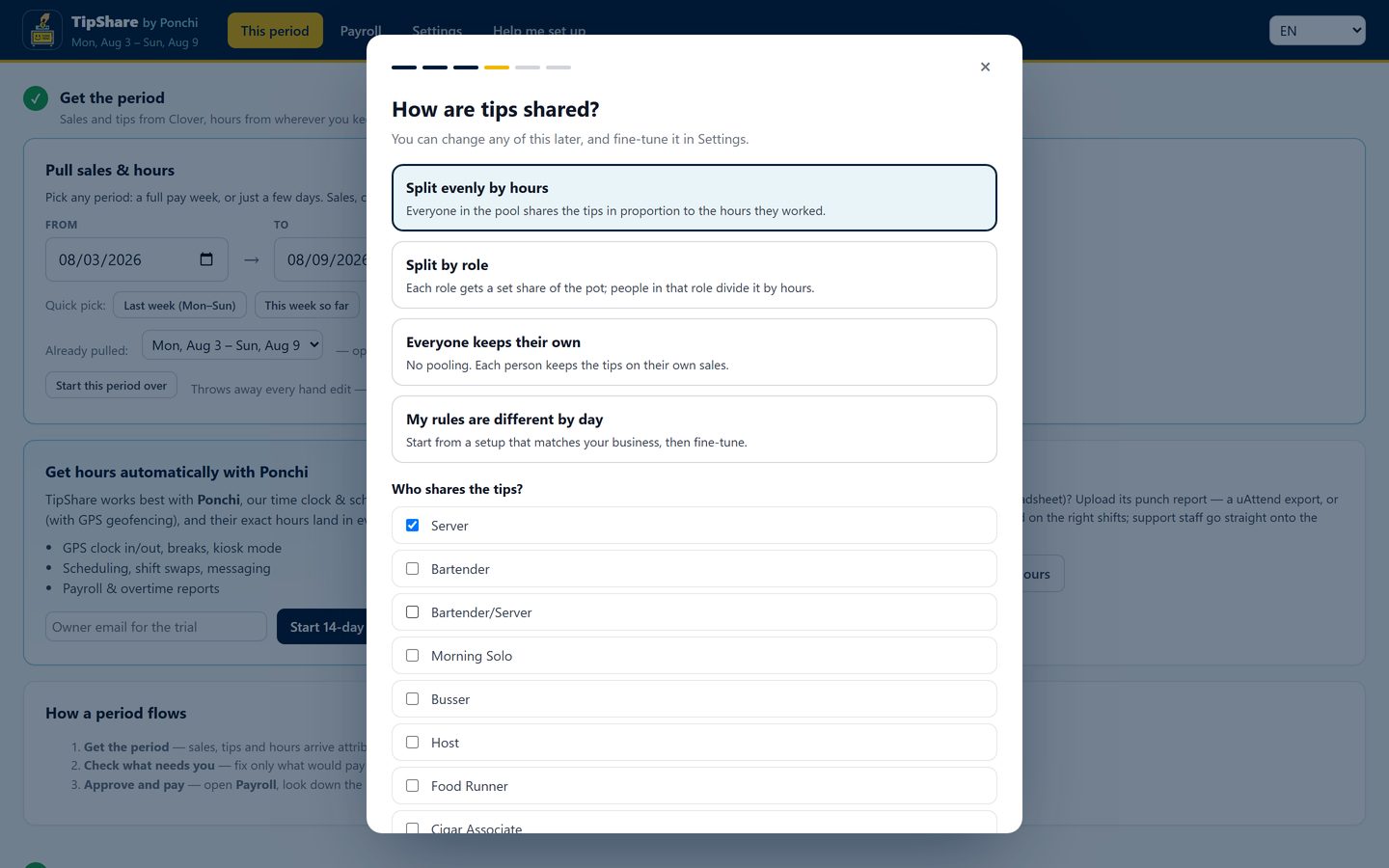
Answer four setup questions
The first time you open TipShare, a short setup asks four things:
- What to call your tip policy.
- How often tips settle: each shift, each day, or each pay period.
- What happens to cash tips: card tips only, each person declares their cash, or one cash jar per shift.
- How tips are shared: split evenly by hours, split by role, everyone keeps their own, or My rules are different by day, which starts from a standard setup for your kind of business.
Then tick who shares the tips and confirm each person's role.
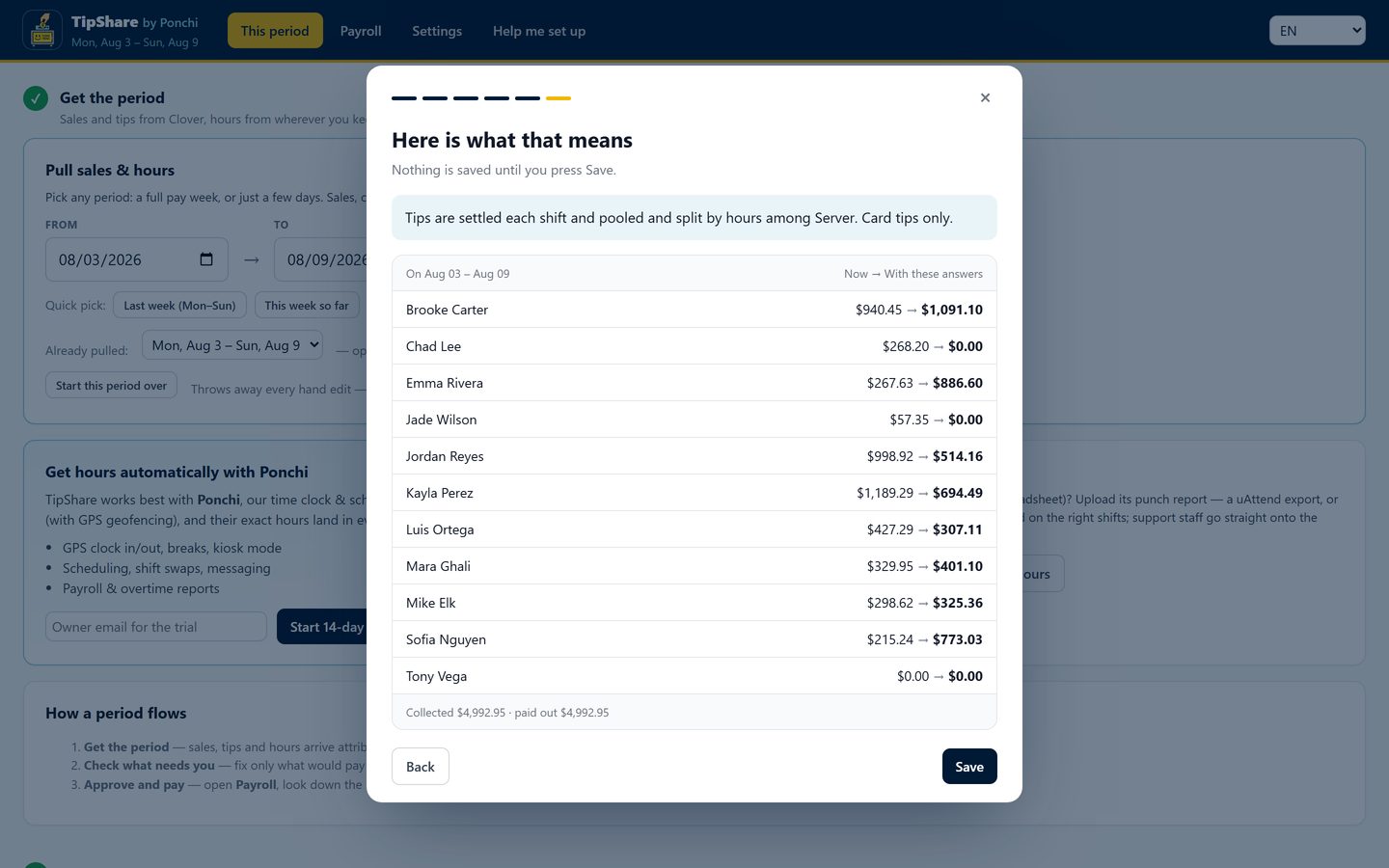
See what it would pay before you save
The last setup screen runs your answers against a real week: each person's pay today next to what they would get with your answers, and the total collected against the total paid out.
Nothing changes until you press Save. You can open the setup again any time from Help me set up.
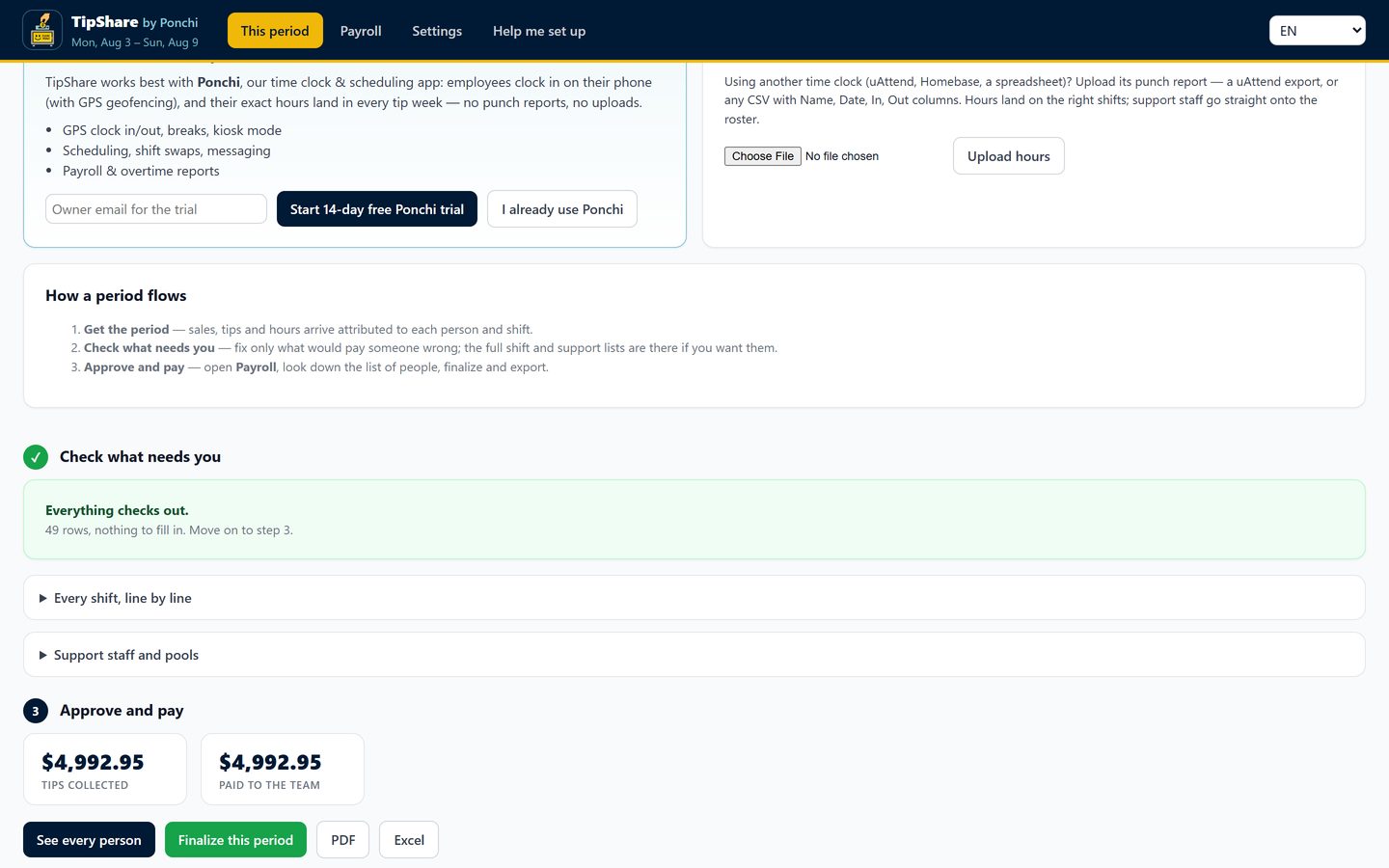
Get the period, check it, approve it
This period works in three steps:
- Get the period. Pick the dates or press Last week. TipShare pulls sales, card tips and gratuity from Clover, and hours from the Clover time clock, from Ponchi, or from a punch report you upload.
- Check what needs you. Anything that would pay someone wrong is grouped by cause, with one button to fix it. When nothing needs you, it says Everything checks out.
- Approve and pay. Tips collected and paid to the team, side by side.
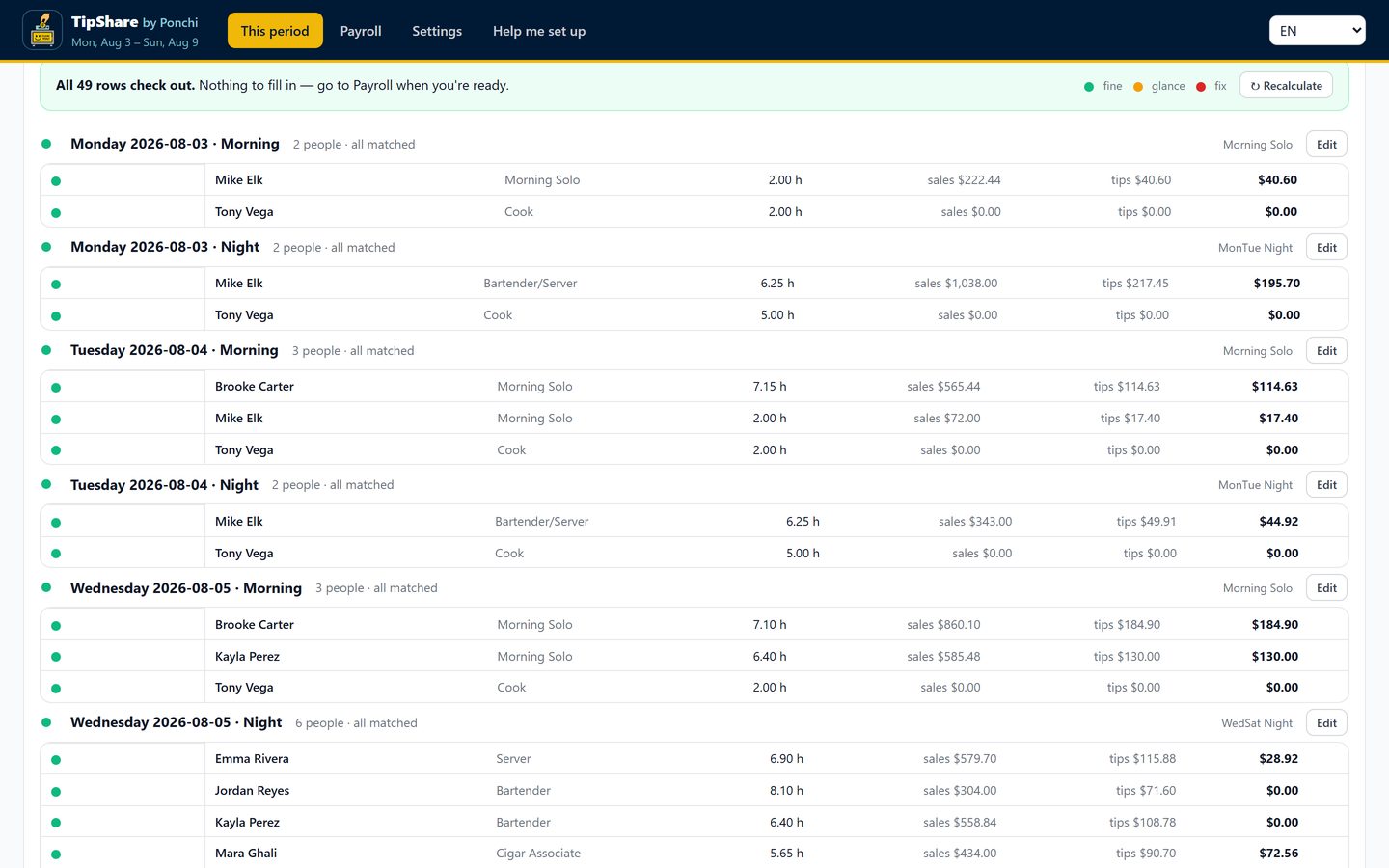
Every shift, line by line
Open Every shift, line by line to see each person's hours, clock times, sales, gratuity, card tips, tip-outs and take-home for every shift. Press Edit on a shift to change a role or a number; the totals recalculate straight away.
- A role set on one shift changes only that shift, so someone can tend bar on Monday and bus tables on Friday.
- Support staff and pools shows who worked support and how each pool was split. If nobody worked support on a shift, choose what happens to that money.
- Start this period over throws away every hand edit and rebuilds the period from Clover and your punch file.
Payroll: one line per person
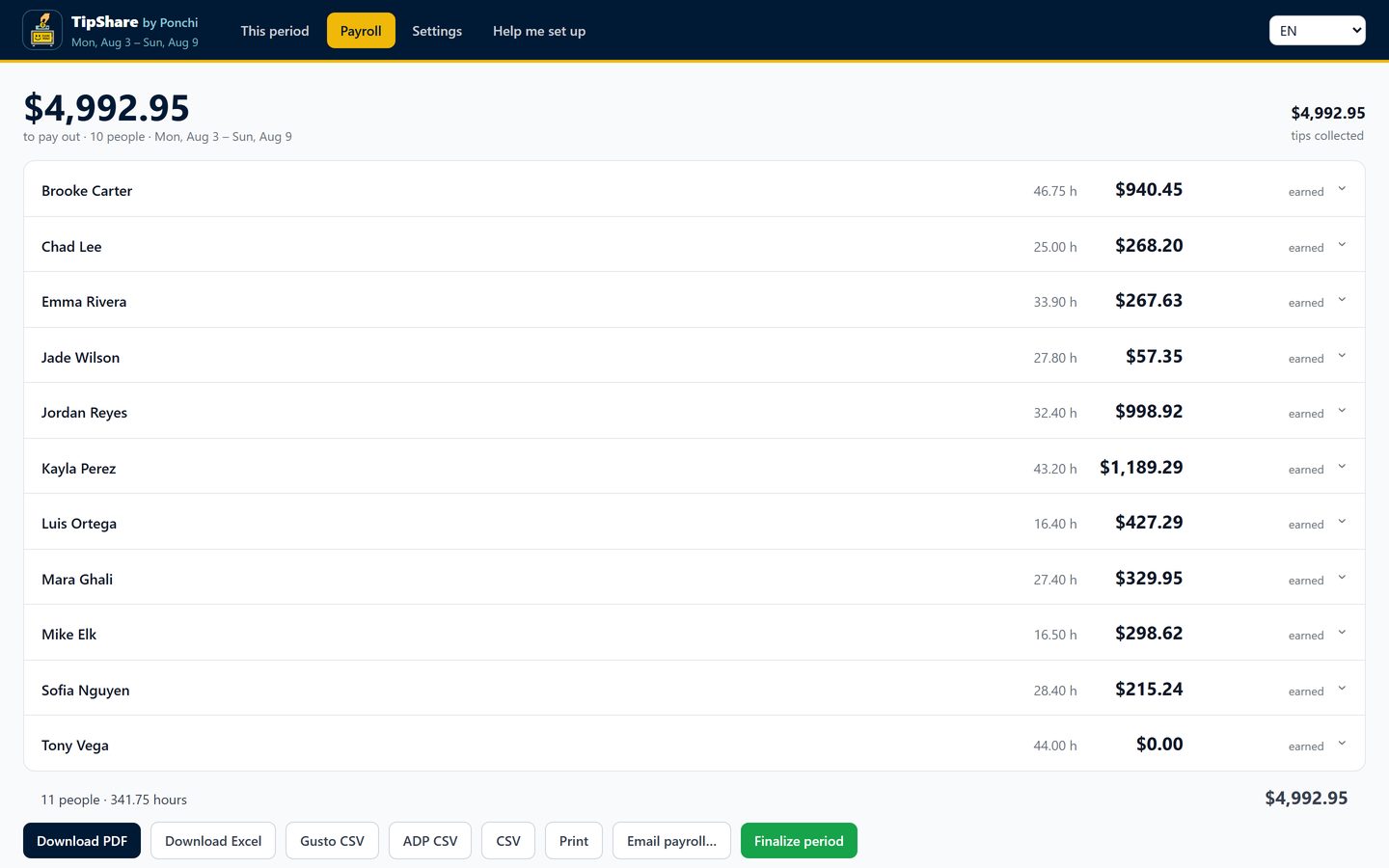
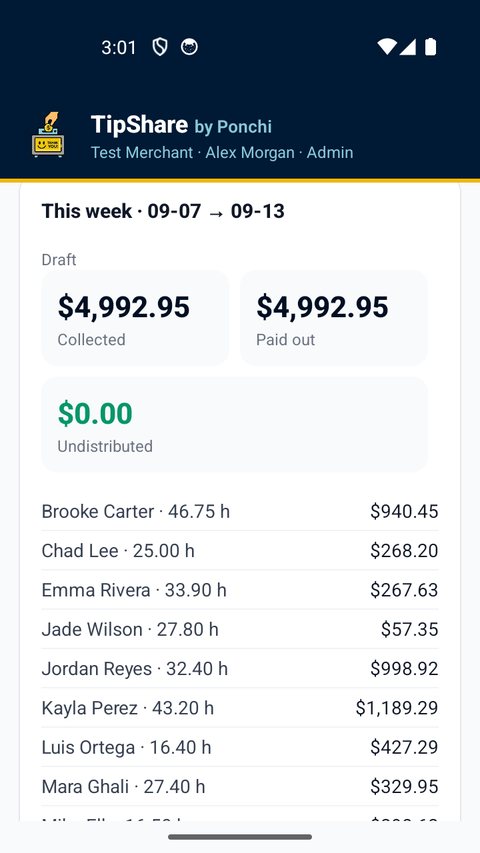
Payroll shows the total to pay out, then one line per person with their hours and earnings.
Export it as a PDF, Excel, a Gusto CSV, an ADP paydata file or a plain CSV, print it, or email it to your bookkeeper. Press Finalize period when it is right.
Explain anyone's pay
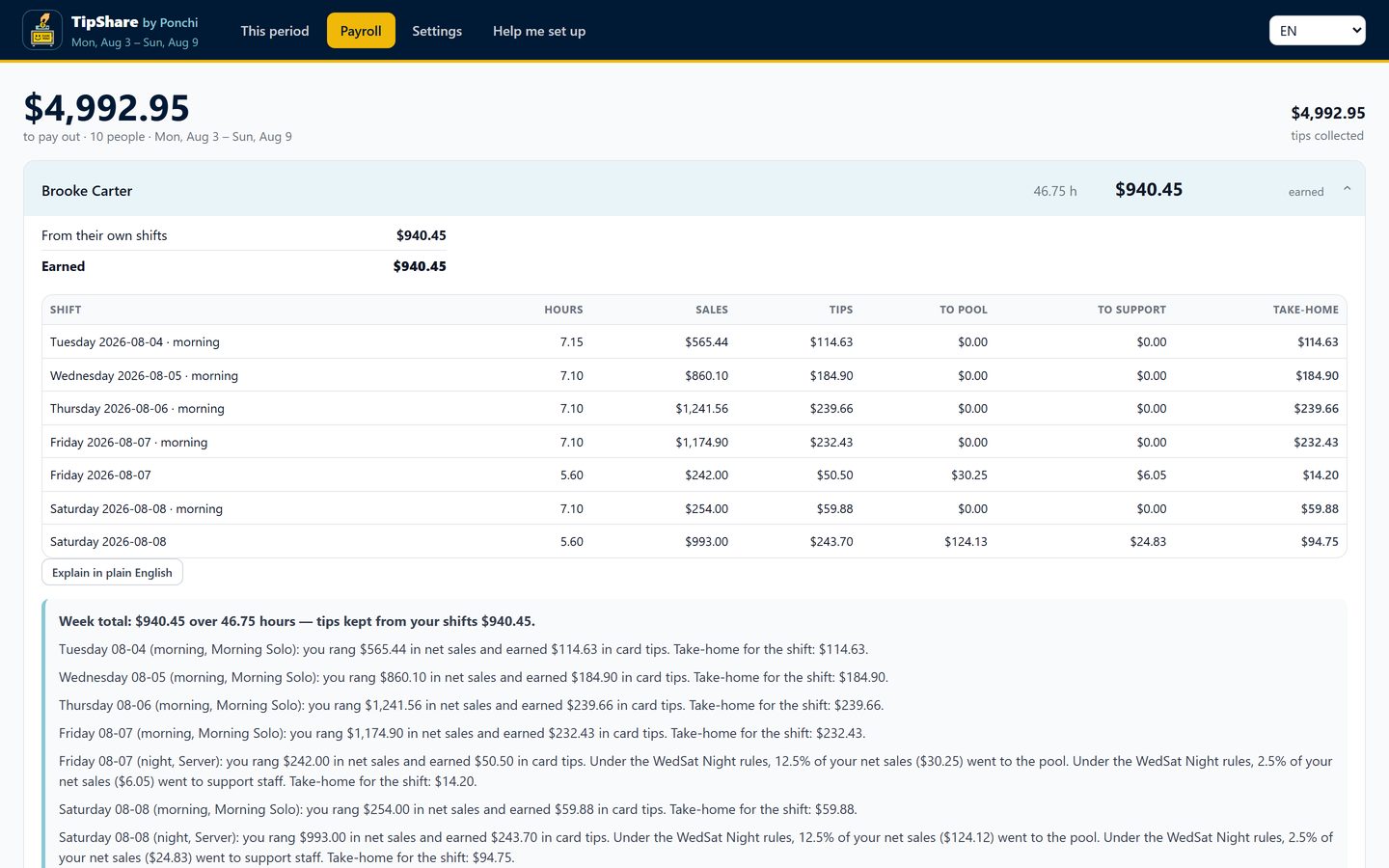
Open a person to see where their money came from: their own shifts, their share of the tip pool and any support payouts, then every shift behind it.
Explain in plain English writes a breakdown you can copy and hand to the employee.
Your house rules
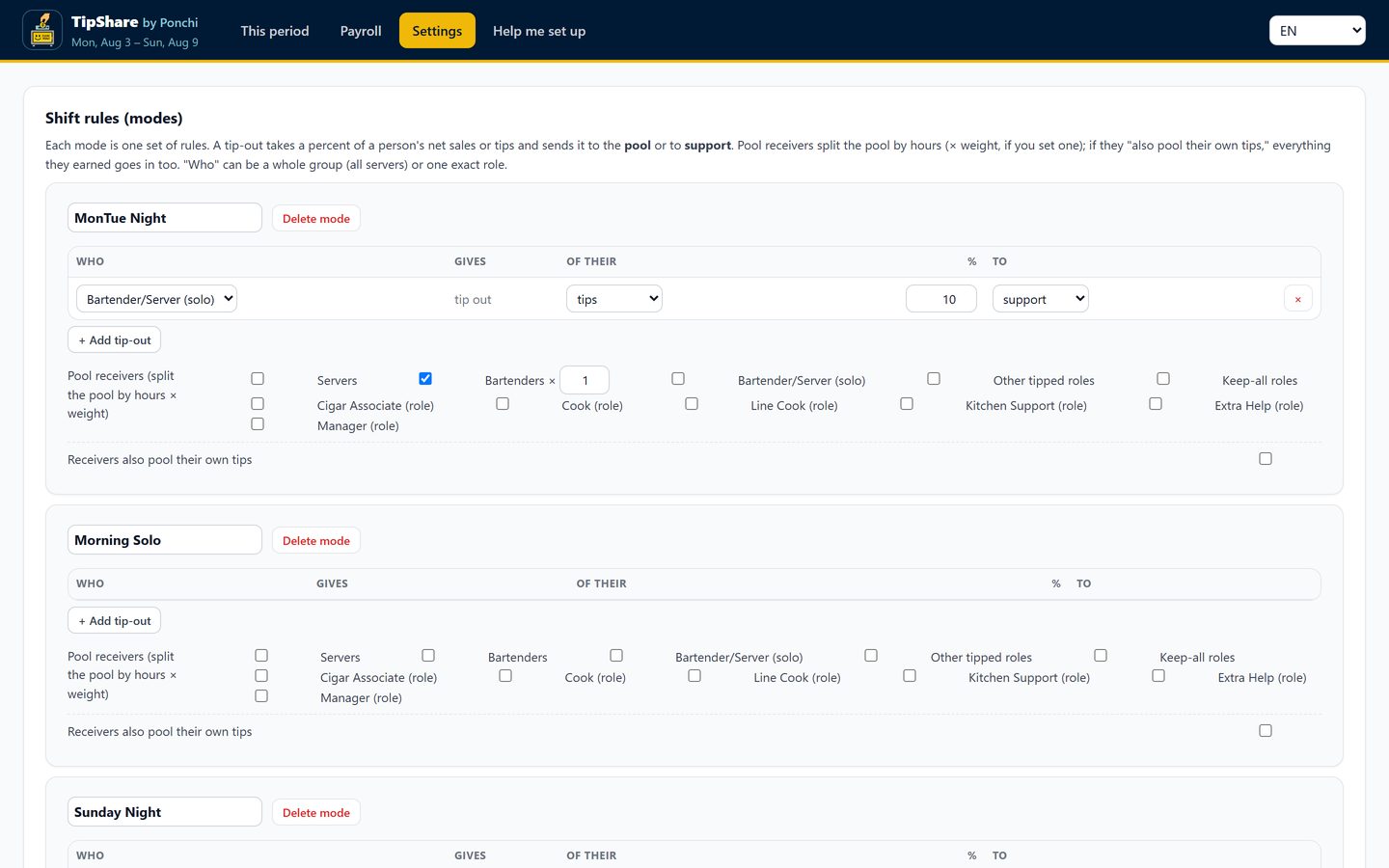
Settings holds the rules behind every number: tip-outs as a percent of sales or of tips, who receives the tip pool, the schedule of rules by day, support slots and how the support pool splits, cash tips, the card fee, the names your gratuity lines use, sales left out of tip-outs, your employees, and a history log of every change.
Each employee's own tip page
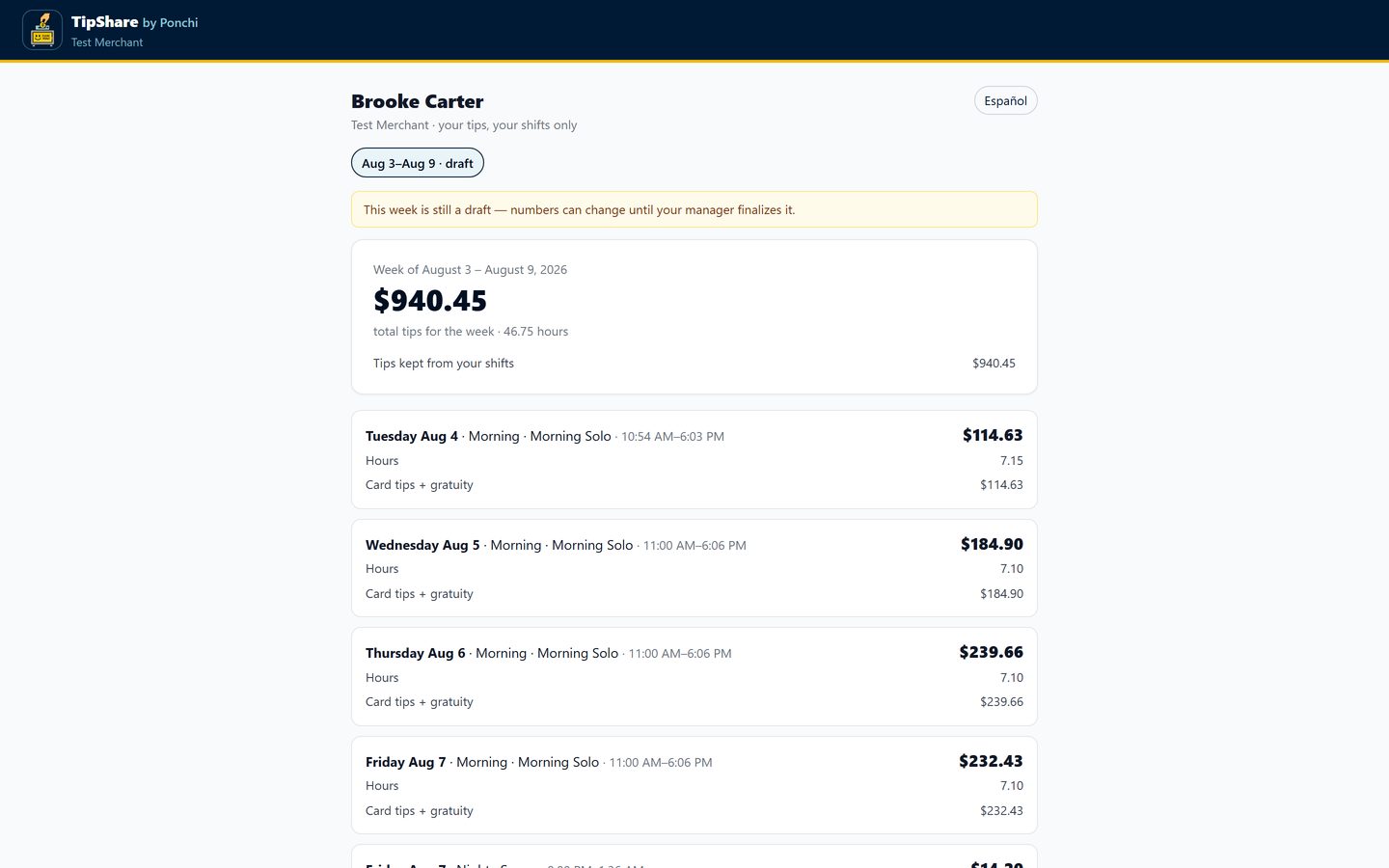
Turn on employee tip pages in Settings and each person gets a private link that shows only their own shifts and totals, in English or Spanish.
On the Clover device
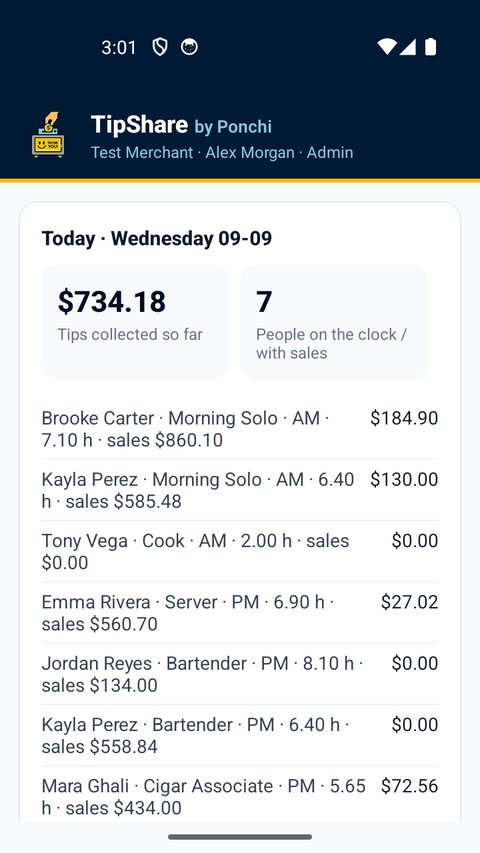
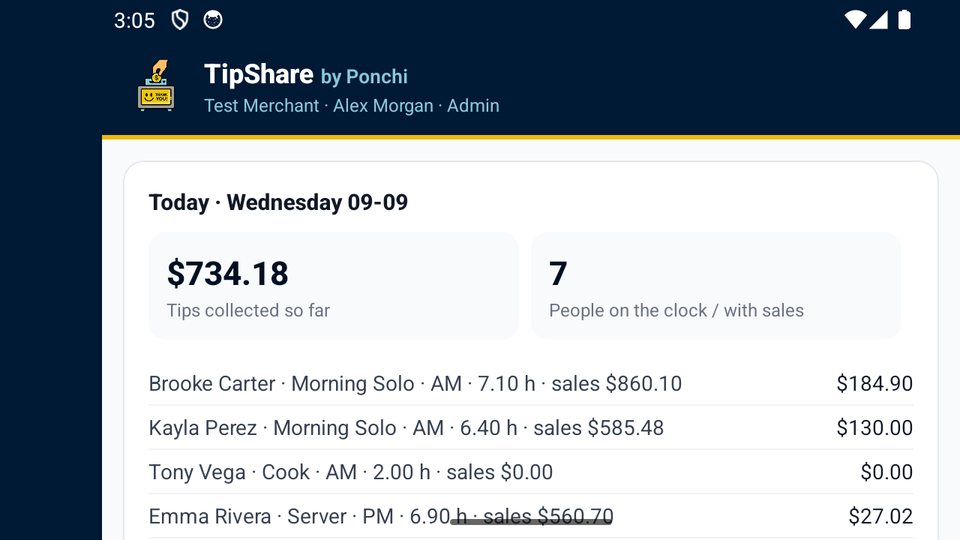
Open TipShare on the Clover Flex, Mini or Station Duo. Owners and managers see today's tips live and this week's status. Employees logged into the device see only their own numbers, and only if you turned employee pages on.
Questions and support
Email contact@ponchi.app or call (346) 332-6440, Monday to Friday, 9am to 6pm Central. Common questions are answered on the TipShare page.
TipShare calculates what you configure. Tip laws vary by state, so confirm your practices with a labor attorney or your state labor department. Privacy Policy · Merchant Terms